Rental Panel Domain, DNS and SSL: How to Connect Your Domain Safely
Your domain is the one asset you must always own. Learn how to choose it, point it at your panel and avoid the usual DNS mistakes.
Key takeaways
- Register the domain yourself, in your own name, at a registrar you control.
- A panel usually goes live within minutes once nameservers resolve; do not keep changing records while it settles.
- SSL should be issued and renewed for you, with no manual steps.
- You can change your panel domain later if your brand changes.
A rental panel runs on a domain you own. That one fact explains almost everything in this guide: because the domain is yours, you can leave a provider, you can rebrand and you control your reputation. Because it is yours, you also have to set it up properly.
Choosing the name
- Short, easy to say aloud and easy to spell.
- No hyphens or number tricks.
- A familiar ending such as .com is trusted everywhere.
- Not a copy of an existing brand, which invites complaints.
Registering it safely
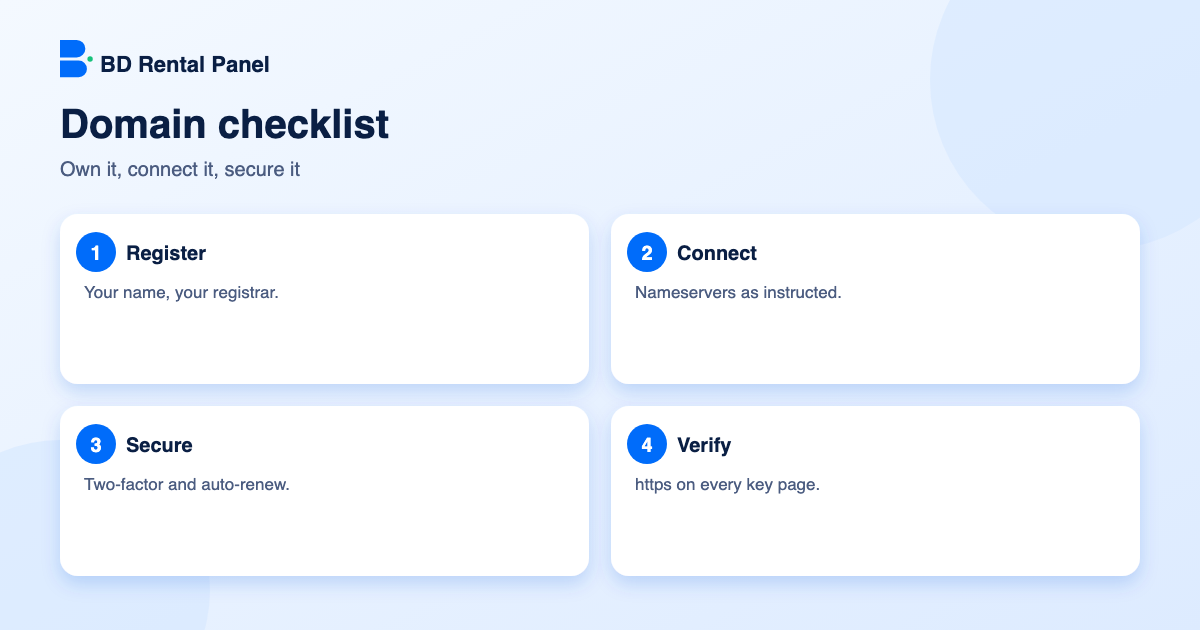
Register at a reputable registrar with your own login and a strong password with two-factor sign-in. Never let a provider register the domain in its name. Keep the contact email current so renewal notices reach you, and turn on auto-renew so the domain never lapses.
Connecting it to your panel
On our plans the DNS is connected for you and you can manage the records of your panel domain from the dashboard, with the core records that keep the panel online protected from accidental deletion.
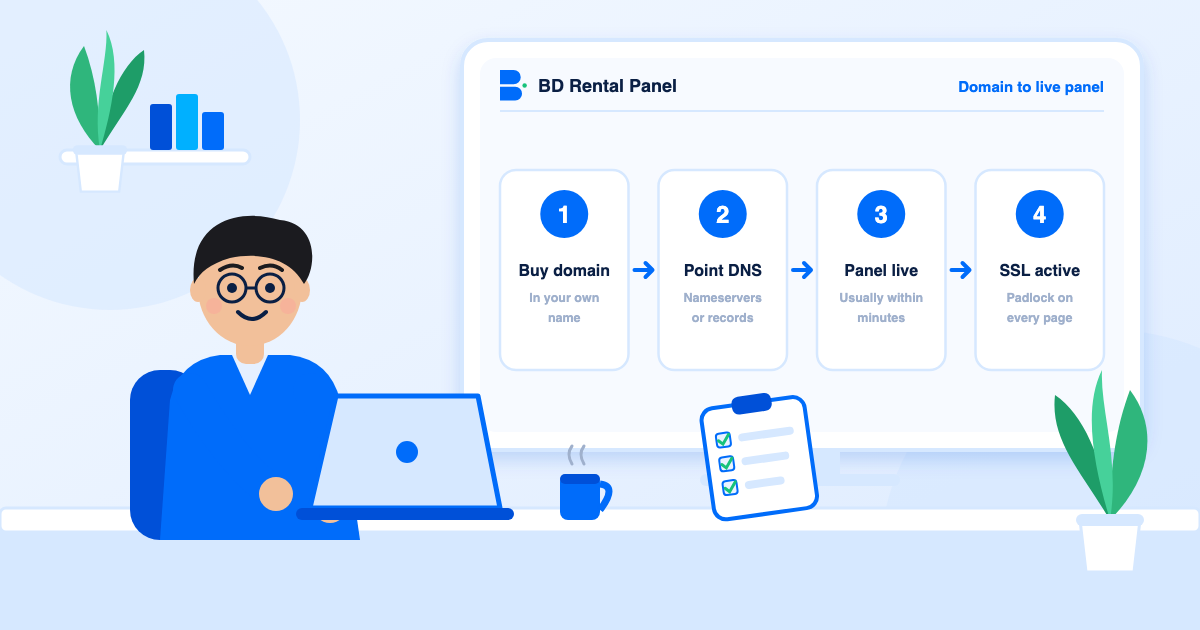
- Rent the plan and enter the domain.
- Point the nameservers, or the records you are shown, to the panel as instructed.
- Wait for the change to spread. A panel is usually live within minutes once nameservers resolve.
- Confirm the site loads on https and shows the padlock.
SSL: what should happen automatically
A free certificate should be issued when the panel goes live and renewed on its own. A browser warning on your checkout page costs you customers, so verify that https works on the home page, the sign-in page and the add-funds page.
Common mistakes
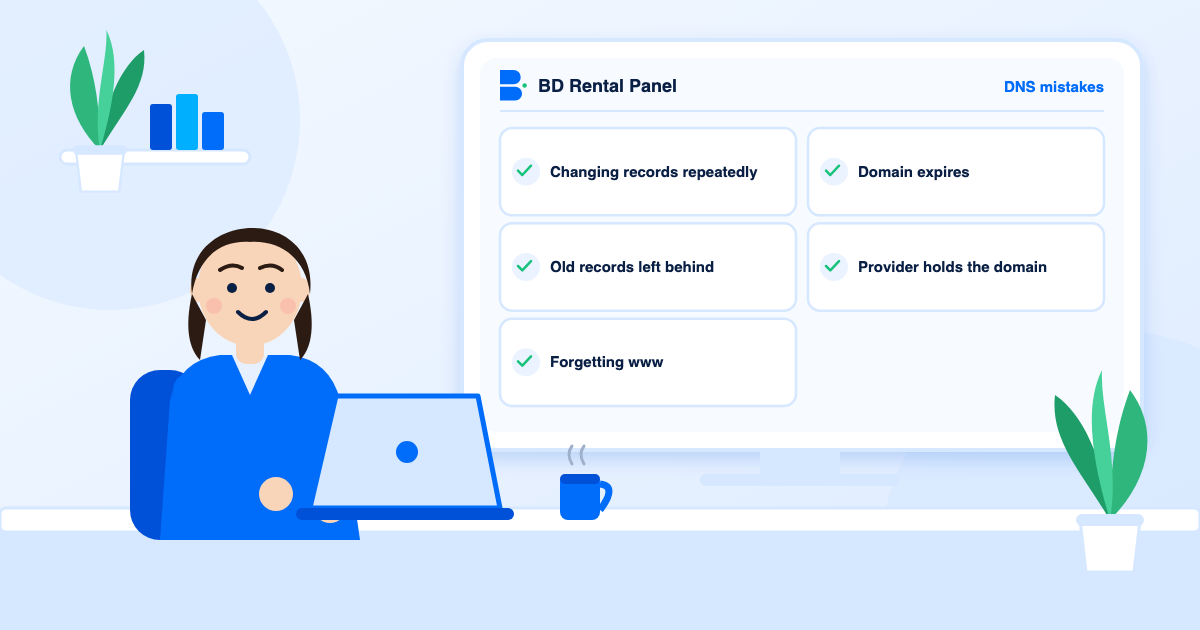
- Changing records again and again while DNS is still spreading.
- Leaving old records that point to a previous host.
- Forgetting the www version.
- Letting the domain expire.
- Using the provider's account to hold the domain.
Changing your domain later
Brands change. You can move your panel to a different domain from the dashboard: connect the new domain, wait for SSL, then redirect the old one so existing customers and search engines follow. Tell customers ahead of time. If you are changing provider rather than domain, follow how to switch provider.
Nameservers or records?
There are two ways to connect a domain. With nameservers, you tell the registrar to hand control of the domain's DNS to the panel's DNS service, which then manages the records for you. With records, you keep DNS at your registrar and add the specific A or CNAME records you are given. Nameservers are simpler and let the provider fix problems for you; records give you more control if you run other services on the same domain, such as email. Pick the one your plan describes and follow the steps exactly.
Email on the same domain
Your support address will probably use the same domain. Keep the mail records (MX, SPF, DKIM) intact when you change DNS, or mail stops. If you move nameservers, copy every existing record first. A forgotten mail record is the most common surprise during a domain connection.
How to check it worked
- Open the domain on https and confirm the padlock.
- Open the www version and confirm it redirects to your main address.
- Visit the sign-in and add-funds pages and look for mixed-content warnings.
- Send a test email to your support address.
- Check the site from your phone on mobile data, which uses different DNS from your office.
When something looks wrong
If the old site still appears, DNS has not finished spreading; wait and test from another network. If you see a certificate warning, the certificate may not have been issued yet because DNS had not resolved; give it a few minutes before contacting support. If the page does not load at all, check that the records point to the values you were given and that you did not leave a conflicting old record. Do not keep editing while you wait, because every change restarts the clock.
Domain renewal and risk
Domains are rented too, usually yearly. If yours expires, the panel disappears and somebody else may register the name. Turn on auto-renew, keep a payment card on file that does not expire soon, use an email address you read, and put the expiry date in your calendar a month ahead. Many registrars offer a longer registration or a lock that blocks unauthorised transfers; use them.
Subdomains and extra sites
You may want a blog, a status page or a separate API address on the same domain. These are usually subdomains such as blog.yourdomain.com, added as extra DNS records. Add them one at a time and test each. Keep a simple list of every record you add and what it is for, so that in a year you can tell which ones are safe to remove.
Redirects and search engines
Pick one canonical address, with or without www, and redirect the other to it. Search engines treat the two as separate sites otherwise and split your ranking. If you ever change domain, use permanent redirects from the old pages to the matching new ones, keep them for at least a year and tell search engines about the move in their webmaster tools.
Frequently asked questions
Yes. Your panel runs on a domain you own.
Usually within minutes once the nameservers resolve, though DNS changes can take longer to spread everywhere.
Yes. A free certificate is issued and renewed automatically.
Yes, from the dashboard.
DNS changes take time to spread, and your own device may cache the old address. Test from another network and wait.
Launch your own rental panel
Hosting, SSL and updates included, live on your domain in minutes.